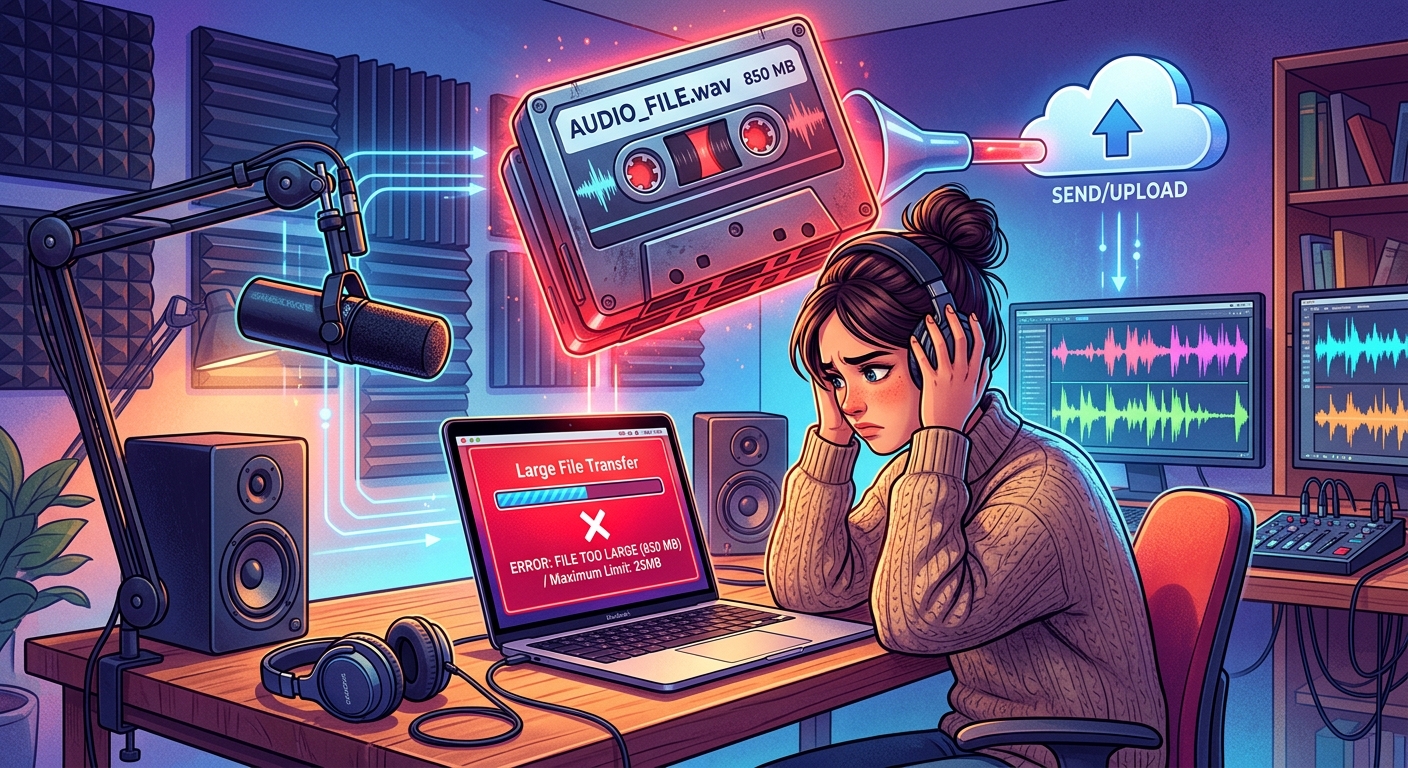
You recorded the perfect interview. Your podcast episode sounds great. Then you try to attach it to an email or upload it to your hosting platform, and you hit a wall. The file is too big. It happens more often than you might think, and the fix is simpler than it seems once you understand what is making the file so heavy in the first place.
What You Need to Know
- Long runtime, high bitrate, and stereo recording are the three main reasons an MP3 grows large.
- You can shrink any audio file by lowering the bitrate, converting stereo to mono, or trimming the runtime.
- A browser-based tool lets you set a target file size without installing any software or changing settings you do not understand.
Why Your MP3 Can Still End Up Enormous
MP3 is a compressed format, but compression is not magic. The file still has to hold all the audio data in a form that players can decode. Three things determine how big that file gets: how long the recording is, what bitrate was used, and whether the audio is stereo or mono.
Bitrate is the biggest factor most people overlook. It refers to how much audio data is packed into every second of your file. A recording at 320 kbps uses roughly four times as much space as the same recording at 80 kbps. Most recording software defaults to 128 or 192 kbps, which sounds reasonable but adds up fast over a 90-minute episode.
Stereo doubles the data. Two channels instead of one means roughly twice the information at the same bitrate. For a spoken-word podcast or a voice memo, stereo is almost always unnecessary. Your audience will not notice whether a voice comes from one channel or two. But the file size difference is very real.
Runtime is obvious but worth saying plainly. A 10-minute file is always smaller than a 60-minute file at the same settings. Long-form content creators are the first to hit upload limits simply because their files are long. Understanding what MP3 encoding actually does behind the scenes helps you make smarter decisions at every step.
The File Size Limits You Keep Running Into
Different platforms draw the line in different places. Email clients are often the most restrictive. Gmail's attachment limit sits at 25 MB. Outlook's default is 20 MB. A 45-minute stereo MP3 recorded at 192 kbps can easily reach 60 MB or more, which explains why so many people get bounced at that first hurdle.
Podcast hosting platforms are more generous, but they are not unlimited. Some free tiers cap individual episode files at 50 MB or 100 MB. Social media platforms that accept audio or video often have tight limits, especially on mobile apps.
The problem is not always the platform itself. Sometimes it is the receiving end. A client, colleague, or editor may have a mailbox that rejects large attachments. A shared team folder might have storage quotas. Knowing the limit on the other end matters just as much as knowing your own file's size.
Three Levers That Control How Big Your Audio File Gets
You do not need to be an audio engineer to shrink a file. You just need to understand the three variables you can adjust and what trade-offs each one carries.
- Bitrate: Lowering it from 192 kbps to 96 kbps cuts file size roughly in half. For voice content, 96 kbps is perfectly clear. For music, 128 kbps is usually the lowest you want to go before quality starts to suffer noticeably.
- Channels: Switching from stereo to mono cuts the file size nearly in half without changing the length or bitrate at all. For podcasts, interviews, and voice memos, this is an easy win with almost no downside.
- Runtime: Trimming silence from the start and end of a recording, cutting long pauses, and removing filler segments all reduce the final file size. Editing is not just about quality. It also helps with size in a meaningful way.
You can pull on any one of these levers or combine all three. The right approach depends on what matters most for your specific file and your specific deadline.
How Bitrate Affects File Size at Different Runtimes
The table below shows how much space you can expect a stereo MP3 to use at common bitrate settings across different episode lengths. The numbers are approximate but accurate enough to plan around before you compress or upload.
| Bitrate | 30 Minutes | 60 Minutes | 90 Minutes |
|---|---|---|---|
| 320 kbps | ~72 MB | ~144 MB | ~216 MB |
| 192 kbps | ~43 MB | ~86 MB | ~129 MB |
| 128 kbps | ~29 MB | ~57 MB | ~86 MB |
| 96 kbps | ~22 MB | ~43 MB | ~65 MB |
These figures assume stereo audio. Switch to mono and you can halve each of these numbers again. A 60-minute episode at 96 kbps mono comes in around 22 MB, well within email attachment limits.
How to Shrink Your File Without Installing Any Software
Most people assume they need to download a dedicated audio editor to change bitrate settings. That is not true anymore. Browser-based tools let you compress an MP3 right from the upload screen, with no accounts or installs required.
The most useful feature to look for is a target file size option. Instead of guessing which bitrate will get you under the limit, you type in the size you need and the tool works backward. If you need to get under 25 MB for an email attachment, you enter that number and the tool figures out the rest. An MP3 compressor that accepts a target size takes the guesswork out entirely, which is useful when you have no idea where to start with bitrate settings.
The process is straightforward: upload the file, enter your target size, and download the compressed version. Nothing is stored on your machine. Nothing requires you to adjust settings you do not understand. It works on any device with a browser, including tablets and phones, which matters when you are trying to send something on the go.
This approach is especially practical for creators who compress files occasionally rather than daily. You do not want to learn audio engineering just to send one interview. A tool that takes a number and gives you a file is genuinely the fastest path from too big to sent.
When Splitting the File Makes More Sense
Sometimes compression is not the right answer. If you are working with a three-hour recording at a high bitrate and you need every second of that audio at decent quality, compressing it down to 25 MB will noticeably affect how it sounds. In that case, splitting the file into parts is a cleaner solution that does not sacrifice the listening experience.
Splitting is also useful for podcast hosts that charge by storage or have per-episode limits. Breaking a long episode into two parts doubles your available space under the cap, and some audiences actually prefer shorter, more focused episodes anyway.
There are situations where splitting is clearly the better call:
- The compressed version sounds noticeably worse and audio quality cannot be sacrificed for your audience.
- The file is over two hours long and covers clearly distinct topics or segments that work as standalone pieces.
- The receiving platform has a hard size cap that no amount of bitrate reduction will clear without destroying quality.
- You are distributing the same recording across multiple platforms that each have different, conflicting size limits.
Free audio editors like Audacity let you split files with basic cuts. You do not need anything complex. Just identify a natural break point in the conversation or content, export each section separately, and label them clearly so your audience knows what order to listen in.
A Note on Format Choice Before You Hit Record
If you have not recorded yet, your format choice matters more than anything else after the fact. WAV files are uncompressed. A one-hour WAV recording can reach 600 MB or more. Recording directly to MP3 at a reasonable bitrate saves you the compression step entirely.
Some recording apps default to the highest possible quality, which sounds good in principle but creates files that are genuinely hard to share or store. Check your settings before you start. Choosing 128 kbps mono for a voice-only podcast from the beginning means you may never run into a file size problem at all.
That one settings check before recording can save you 20 minutes of compression and troubleshooting after. Creators who build this habit spend far less time fighting upload failures.
From File Too Big to File Sent
The next time a platform or inbox refuses your audio file, you now have a clear path forward. Check the file size against the limit. Identify whether runtime, bitrate, or stereo channels are the main culprit. Then decide whether to compress, split, or adjust how you record next time.
A browser-based compression tool is the fastest fix for most situations. No software to install. No audio expertise required. You set the target, the tool does the math, and you end up with a file that fits. That is the simplest version of the solution, and for most podcasters and content creators it is the only one they will ever need.
Sharing audio does not have to be a headache. A few minutes of adjustment can turn a file that was too big to send into one that arrives without a hitch, sounds fine on the other end, and does not require you to explain yourself to anyone.