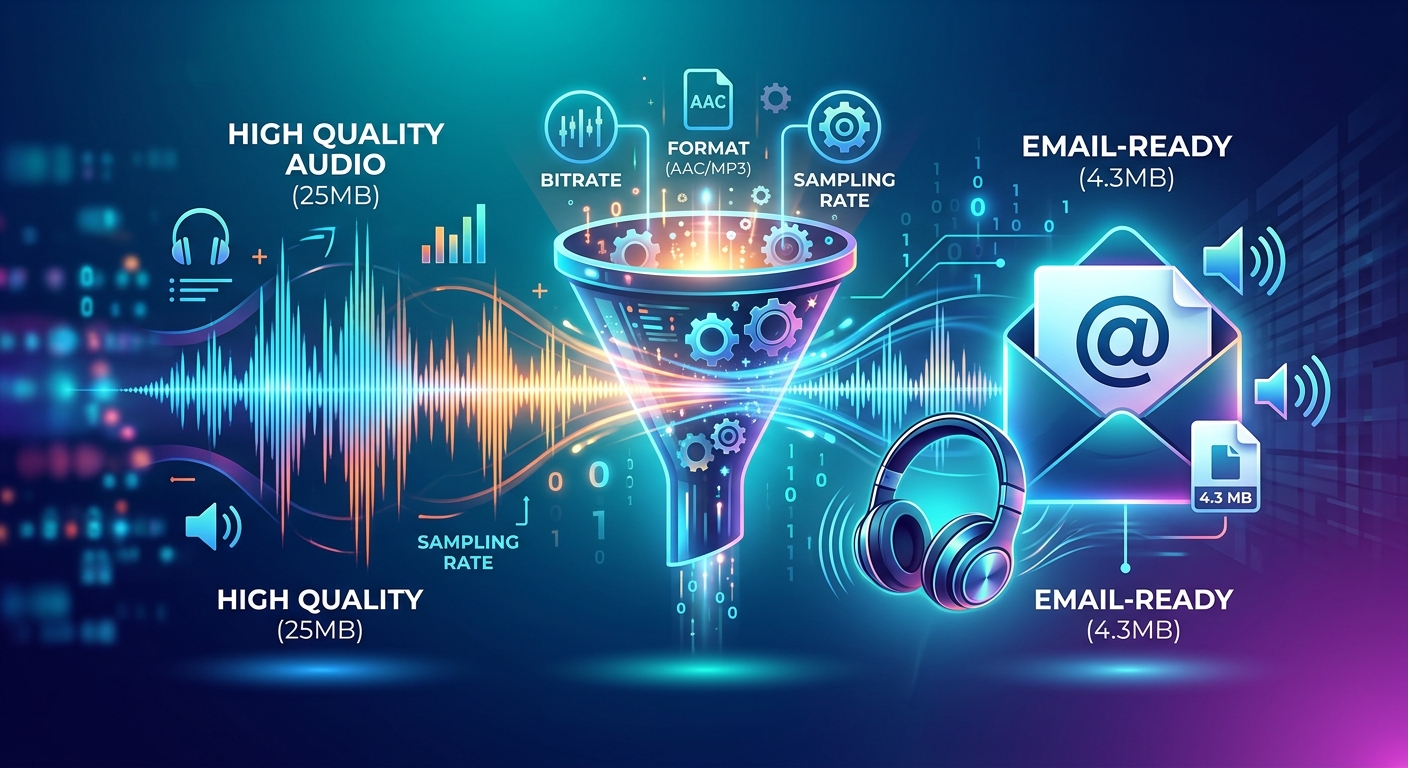
Your audio is ready to send. The email is written. Then the attachment fails because the file is too large. A voice recording, podcast preview, or music demo can hit that limit faster than you expect, especially if it was saved as a WAV file. You can usually make a much smaller copy in your browser without making it unpleasant to hear. The trick is to choose settings that suit the recording, then listen before sending.
A smaller email attachment starts with the right MP3 settings, followed by a careful listening check.
- Keep your original file and convert a separate copy for sending.
- Match the bitrate to the content, with lower settings for speech and higher settings for music.
- Check the attachment limit and listen to the converted file before you send it.
Decide What the Recipient Needs to Hear
Before changing any settings, think about why you are sending the audio. A client reviewing a spoken script needs clear words. A bandmate reviewing a mix needs enough detail to judge the instruments. A friend hearing a recorded message probably does not need a large recording intended for editing.
That distinction helps you choose how much to shrink the file. Speech often works at lower bitrates than music. Music contains overlapping sounds, sharp drum hits, and quiet details that can suffer when compression becomes too aggressive.
There is also a difference between a listening copy and a working file. An MP3 is often suitable for feedback, previews, and casual listening. If the recipient needs to edit, mix, or archive your original recording, keep that original available. A download link may be a better way to deliver it.
Save your source file somewhere safe before you begin. Use a separate name for the email version, perhaps “interview-preview.mp3” or “song-demo-email.mp3.” This keeps the smaller copy easy to identify and prevents confusion later.
Use MP3 to Make a Large Recording Easier to Send
MP3 is a useful starting point because it produces compact files and plays on a broad range of devices. It is especially helpful when your source is an uncompressed WAV recording. WAV files can hold much more data than you need for an ordinary listening copy.
MP3 uses lossy compression. That means some audio information is removed to reduce the file size. You cannot promise that every compressed file will sound identical to its source. You can, however, choose settings that keep the recording clear and enjoyable for its intended use.
If your file is already an MP3, converting it to MP3 again does not automatically make it smaller. You need a lower bitrate, fewer channels, or a shorter recording. Each new lossy conversion can also introduce more audible changes. Whenever possible, create your email copy from the original recording rather than from a previously compressed version.
AAC is another compact format, but an MP3 is a straightforward choice when you do not know what the recipient will use to listen. Converting an AAC file to MP3 is not a guaranteed size reduction. The chosen settings determine the result.
Convert the Audio in Your Browser
A browser-based audio converter lets you prepare the attachment without installing a desktop application. Have your original file ready, then look for output format and audio quality controls. Labels vary between tools. A bitrate control may appear under settings, advanced options, or a quality menu.
- Select your source file. Open the converter and choose the recording from your device. If an upload is required, wait for it to finish before continuing.
- Choose MP3 as the output format. This creates a listening copy suited to everyday sharing.
- Set an initial bitrate. Try 96 or 128 kbps for spoken audio. For music, begin at 192 kbps if size allows.
- Choose the channel setting if available. Mono can suit a single speaking voice. Keep stereo for music or recordings where left and right placement matters.
- Convert and download the result. Save it with a clear filename so you can tell it apart from the original.
- Check its size and listen. Confirm that the downloaded file fits your needs before attaching it to the email.
If the converter offers only quality labels, begin with a middle setting for speech or a higher setting for music. Check the resulting size rather than assuming that “medium” means the same thing in every tool.
For sensitive recordings, check how the service handles your audio before uploading it. Some tools process files on your device. Others send them to a server. Use a service whose handling of the recording fits your needs.
Check the Email Limit Before Choosing Your Final Settings
Once you have a first conversion, check email attachment size limits before settling on your final settings. Your provider and the recipient’s provider may allow different amounts. Work email systems can also have their own restrictions.
Leave some room beneath the stated cap. The total message may include other attachments, and email packaging can increase the amount of data being sent. A file that sits right against a limit may fail even when its size on your device appears acceptable.
This check gives you a useful target. If your first MP3 already fits comfortably, there is little reason to keep reducing its bitrate. If it is still too large, you can estimate whether another conversion will help or whether sharing a download link makes more sense.
Choose a Bitrate That Suits the Recording
Bitrate describes how much audio data is used per second. It is usually shown in kbps. At the same duration, a lower bitrate generally produces a smaller file. A higher bitrate gives the encoder more room to preserve detail.
For Voice Messages and Spoken Recordings
For a single voice, 96 kbps is a reasonable starting point. Try 128 kbps when you want more room for natural speech detail, background sound, or several speakers. These are starting settings, not promises of identical results for every recording.
If you need a smaller file, test 64 kbps for speech. It may be adequate for a simple voice message, but listen closely to consonants, breaths, and any background noise. A recording with music underneath the voice may need a higher setting.
Mono can be useful when the same voice is present in both channels and stereo placement adds nothing. At comparable quality settings, mono may allow a lower bitrate. Changing stereo to mono while keeping the same total bitrate does not automatically halve the file size.
For Songs and Music Demos
Start at 192 kbps for a music preview. If size is still a problem, try 128 kbps and compare the result. Focus on cymbals, layered vocals, reverb, and busy sections. Those sounds can reveal compression more clearly than a quiet introduction.
A 256 kbps version gives the encoder more data to work with, but it also creates a larger attachment. Use it when the extra detail serves the recipient and the file fits. For detailed mix feedback, sending the original through a download link may be the better choice.
For Predictable File Sizes
If the converter offers constant bitrate, that option makes size estimates easier. Variable bitrate changes the amount of data used according to the audio. It can use space efficiently, but the final size is less predictable.
You do not need to change every advanced setting. Keep the original sample rate unless you have a clear reason to adjust it. Bitrate and duration are usually the most useful controls for getting a listening copy into an email.
Estimate Whether Another Conversion Will Be Enough
A rough MP3 size estimate is duration in seconds multiplied by bitrate in kbps, divided by 8,000. The result is approximately the size in decimal megabytes. Small amounts of file information can make the actual result differ slightly.
A ten-minute recording at 128 kbps is about 9.6 MB. At 96 kbps, it is about 7.2 MB. At 64 kbps, it is about 4.8 MB. Those estimates help you see whether a lower setting is likely to reach your target.
Duration matters just as much. A thirty-minute recording at 128 kbps is roughly 28.8 MB. Reducing it to 96 kbps brings it to about 21.6 MB. That may still be too large for the message you need to send.
Remove unwanted silence or an accidental recording lead-in if your available tools support trimming. Keep any pauses that belong to the performance or conversation. When a recipient needs only one section, sending an agreed excerpt can preserve better sound than heavily compressing the entire recording.
Listen for Changes Before Attaching the File
Open the downloaded MP3 itself. Playing the original again will not tell you whether the conversion sounds good. Use headphones if available, and keep playback volume roughly consistent when comparing the two files.
You do not always need to replay a long recording from beginning to end for a quality check. Start with a few sections that are likely to reveal problems. Check that the beginning and ending are intact too.
- For speech: Listen for clear words, especially sounds involving “s,” “f,” and “t.” Notice any watery or metallic quality around the voice.
- For music: Check bright percussion, sustained notes, and crowded passages. Listen for smeared attacks or a thin, swishing texture.
- For quiet sections: Check whether breaths, fades, or room sound have become distracting or uneven.
- For the complete file: Confirm that the duration looks right, both ends are present, and nothing cuts off unexpectedly.
If the converted version sounds worse in a way that affects its purpose, raise the bitrate one step and convert again from the original. A slightly larger attachment is useful if it preserves the words or musical detail the recipient needs.
Compression cannot fix distortion already in the recording. If the source crackles, clips, or contains heavy background noise, increasing the MP3 bitrate will not repair it. Judge the conversion against the source, with realistic expectations.
Share a Download Link When the File Still Does Not Fit
There is a point where reducing the bitrate further stops helping the listener. If the file remains too large at settings that sound acceptable, upload it to a file-sharing service you trust and send a download link.
This lets you share a higher-quality version without squeezing it into an attachment. It is especially useful for long interviews, complete podcast episodes, music projects, or original files intended for editing.
Check the link’s access settings before sending. The recipient should have permission to open and download the file. If access expires, include that detail in the email. Add a short description, the recording’s duration, and any feedback you need.
For private audio, choose restricted access when appropriate. A link is only helpful if the intended person can use it and the sharing settings suit the material.
Send a Smaller File You Have Actually Heard
The best email version is the smallest copy that still does its job. Convert from your original to MP3, choose a sensible bitrate, and check the provider’s limit. Then listen to the downloaded result before attaching it.
Keep clear speech clear. Give music enough room for its detail. If acceptable sound and the attachment cap cannot fit together, share a download link. Your recipient gets audio they can use, and you keep the original ready for whatever comes next.