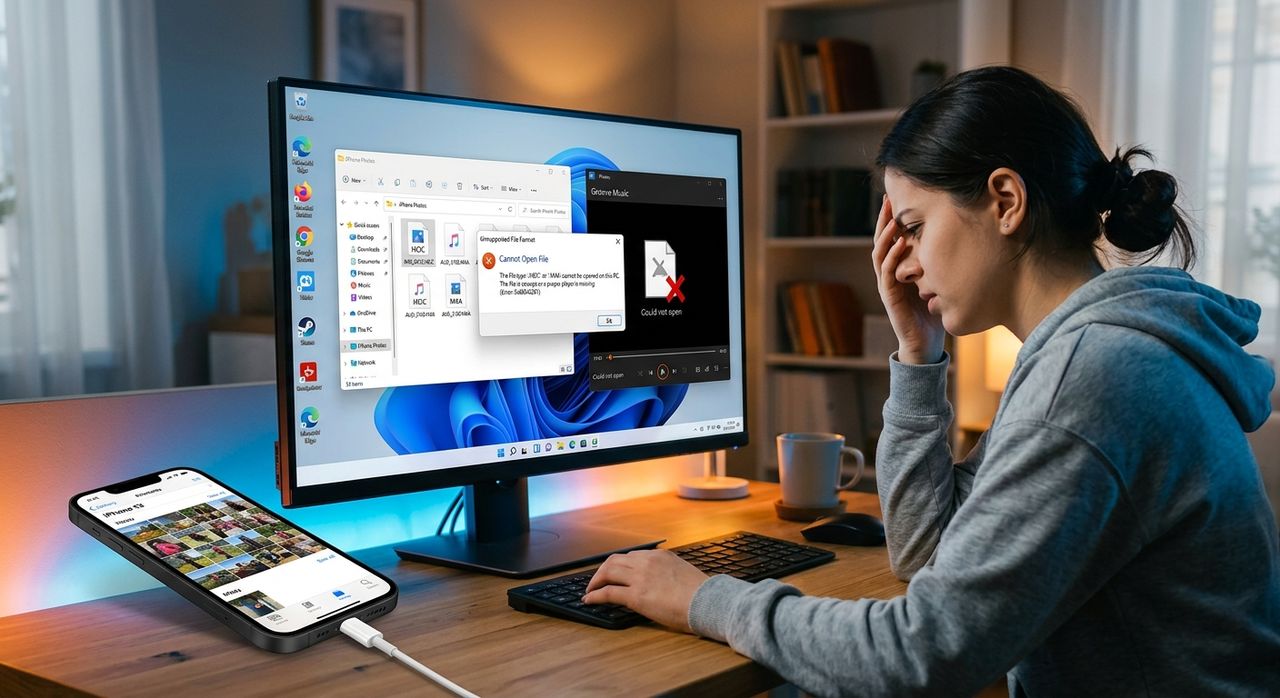
You plug your iPhone into your Windows laptop, drag a few photos and voice memos onto your desktop, and then nothing opens. The photos show a blank icon. The audio files play silence or throw an error. It feels like your computer is broken, but it isn't. Your iPhone is simply speaking a different language, and Windows doesn't have the translator installed by default.
Key Takeaway: iPhones save photos as HEIC files and audio as AAC or M4A files, both of which Windows cannot open without extra software. This happens because Apple chose space-efficient proprietary formats that Windows doesn't support natively. Converting your photos before sharing solves the display problem instantly, and trimming the file size before emailing them keeps you well inside attachment limits without sacrificing quality.
Why Apple Uses Formats Windows Doesn't Understand
Apple switched iPhone cameras to the High Efficiency Image File Format back in 2017 with iOS 11. The reason was storage. HEIC photos are roughly half the size of equivalent JPEGs while keeping the same visual quality. For a phone with a fixed amount of storage, that tradeoff is significant. More photos fit, iCloud backups stay smaller, and uploads are faster on slower connections.
The problem is that HEIC is not a widely adopted standard outside the Apple ecosystem. Windows 10 and 11 can open HEIC files if you install the Microsoft HEIF Image Extensions from the Store, but many people never do that, and enterprise or older machines may not allow Store installs at all. So the file just sits there, unreadable.
The audio side of the story is similar. iPhones record voice memos in AAC format wrapped in an M4A container. Advanced Audio Coding, or AAC, is technically an open standard, but Windows Media Player and many older Windows audio apps were built around MP3 first. Some versions of Windows handle M4A fine through the Movies and TV app, but results vary depending on which codecs are installed, which version of Windows you're running, and which media player you've set as your default.
What Actually Goes Wrong on Windows
When you copy HEIC files from your iPhone, Windows Photo Viewer either displays a gray thumbnail or an error saying the file format isn't supported. The file isn't corrupted. The data is all there. Windows simply doesn't have the codec to decode it.
With M4A audio files, the experience is more inconsistent. Sometimes Windows Media Player opens the file but plays nothing. Sometimes it throws a "codec not found" error. Sometimes it plays fine on one machine and fails on another. That inconsistency makes it harder to diagnose, because the problem isn't always obvious.
Voice memos are particularly frustrating because people often record something important, send it to a colleague on Windows, and only discover the compatibility issue when the colleague says they can't hear anything. By then you're already in the middle of something else.
Fixing the Photo Problem
The most reliable fix for HEIC photos is to convert them to JPEG before you share or transfer them. A converted JPEG opens in every app on every platform without any extra steps.
There are three ways to approach this. First, you can change your iPhone settings so it shoots in JPEG from the start. Go to Settings, then Camera, then Formats, and choose Most Compatible instead of High Efficiency. Your camera will now save JPEGs. The tradeoff is that your photos will take up more space on the device and in iCloud. For most people who care more about compatibility than storage, this is the right long-term fix.
Second, if you already have a library of HEIC files and need to convert them in bulk, the cleanest approach is to use a web-based converter. Uploading your files and converting HEIC to JPG takes a couple of minutes and produces standard JPEG files that open on any PC, any phone, and any email client without friction.
Third, if you're on a Mac and transferring files to a Windows user, AirDrop and iCloud handle conversion automatically in some cases. But if you're dragging files manually to a USB drive or shared folder, that automatic conversion doesn't happen, and you'll end up with raw HEIC files on the other end.
A Note on File Size Before You Email Photos
Even after converting to JPEG, you might run into a different wall: email attachment limits. Gmail caps attachments at 25MB. Outlook sits at 20MB. If you're trying to send a batch of high-resolution iPhone photos, you can blow past those limits quickly, especially if the photos were shot in ProRAW or at full resolution.
Before you hit send, consider trimming the files down. You don't need to sacrifice visible quality to get under an attachment cap. Running your files through a tool that can compress HEIC before conversion, or compressing the JPEGs after, gets you smaller files that email cleanly without the recipient needing to download them from a cloud link.
This is especially useful for professional contexts. If you're sending photos to a client, a printer, or a colleague who asked for "the actual files," you want them attached directly to the email, not hidden behind a Google Drive link.
Fixing the Audio Problem
M4A files are trickier because the fix depends on what you're trying to do with the audio.
If you just need to play the file, the simplest solution is to install VLC Media Player on your Windows machine. VLC includes its own codec library and plays M4A, AAC, FLAC, OGG, and almost everything else without any additional setup. It's free, it's lightweight, and it doesn't require any Windows Store access.
If you need to share the audio with someone who uses a more limited player, or if you're editing it in software that only accepts MP3, you'll want to convert the file. There are desktop apps and web tools that handle M4A to MP3 conversion, and the quality loss at a decent bitrate is minimal for most practical uses like voice memos and interviews.
If you're regularly recording voice memos on your iPhone and always ending up in this situation, consider installing a third-party recording app that defaults to MP3 output. Apps like Otter or Dolby On let you choose your export format before the recording is even done.
The Codec Gap Between Apple and Windows
It helps to understand why this gap exists in the first place. Apple controls its hardware and its operating system together, so it can push new file formats out to every iPhone and Mac at the same time with a single iOS update. Microsoft maintains Windows as a platform that runs on thousands of hardware configurations made by hundreds of manufacturers. Adding support for a proprietary Apple format isn't as straightforward, and it often ends up behind a codec pack or app download rather than built into the base installation.
That disconnect isn't going away. Apple will keep optimizing for its own ecosystem, and Windows will keep lagging slightly behind on native support for Apple-originated formats. Knowing that going in means you can plan ahead instead of being surprised every time you switch between platforms.
The Practical Steps in the Right Order
Here is a logical order for handling this the next time it happens:
- Check whether your photo files are HEIC. If they are, convert them to JPEG using a converter before moving them to the PC.
- Check whether your audio files are M4A. If they are, install VLC first and try playing them without converting. If VLC doesn't fit your workflow, convert to MP3.
- If you're emailing the photos after converting them, compress them first to stay under the attachment limit.
- If this keeps happening, change your iPhone camera settings to shoot in Most Compatible mode so new photos come off the device as JPEG from now on.
- For future audio, use a recording app that exports to MP3 directly.
When Your iPhone Speaks, Make Sure Your PC Can Listen
The frustration of files that won't open comes from the gap between two systems that were designed independently and don't automatically account for each other. Apple's format choices make sense within its own product line. Windows's codec gaps make sense given how it's built. Neither side is broken. They just need a bridge.
That bridge is usually a converter, a codec pack, or a settings change. Now that you know where the friction points are and why they exist, you're in a much better position to clear them out before they slow you down. Whether it's a vacation photo that refuses to display or a voice memo your colleague can't hear, the fix is always findable and rarely complicated.