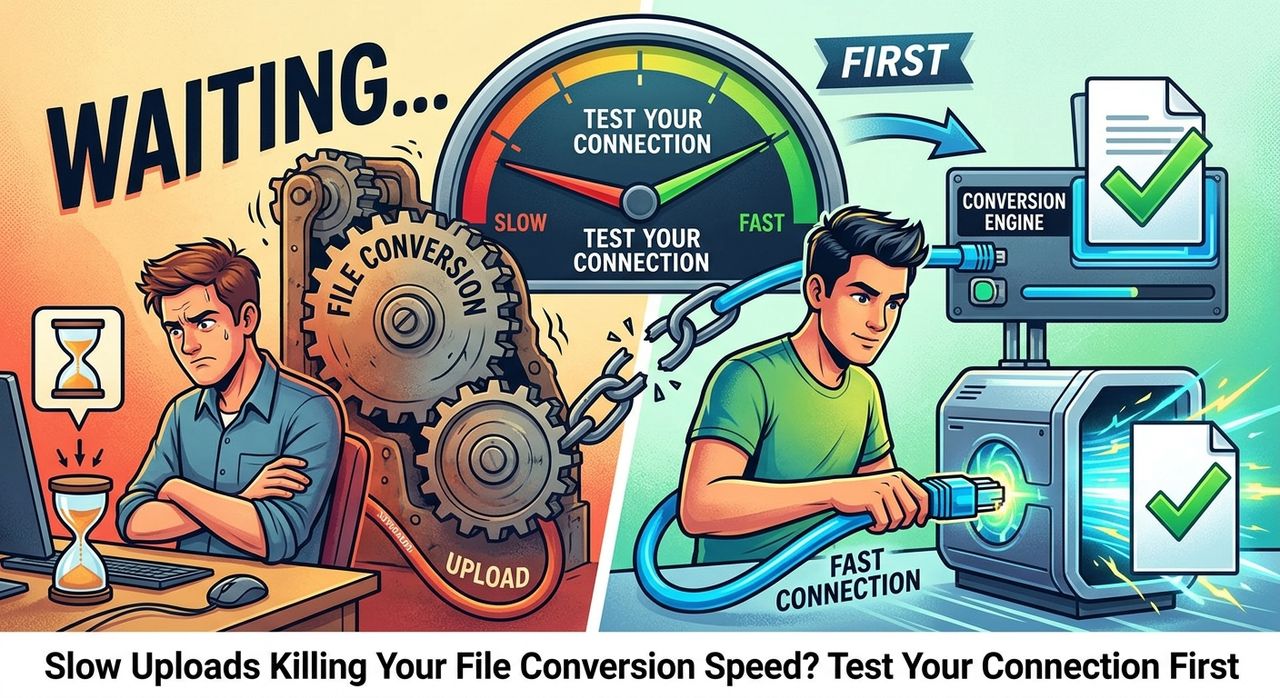
You drop an audio file into the converter, hit upload, and then... nothing. The progress bar crawls. The browser tab spins. You refresh and try again. The tool gets the blame. But nine times out of ten, the converter is not the problem. Your internet connection is. Before you troubleshoot anything else, run a broadband speed test and get the actual numbers in front of you. That single step will tell you more in thirty seconds than ten minutes of guessing ever will.
Your upload speed matters more than download speed for file conversions. Here is what to check before assuming the tool is broken:
- Upload speeds below 5 Mbps will cause noticeable delays with large audio files
- Packet loss and high latency can stall transfers even when raw speed looks fine
- Network congestion from other devices on your connection competes directly with your upload
Why Upload Speed Is the Bottleneck Nobody Talks About
Most internet plans are asymmetric. That means your download speed, the rate at which data comes to your device, is usually much faster than your upload speed, the rate at which data goes from your device to a server. Bandwidth in computing) is split between these two directions, and ISPs historically allocate a much smaller slice to uploads.
When you use an online audio converter, you are not downloading anything yet. The first step is always uploading your source file. A 50MB WAV file on a 2 Mbps upload connection can take four minutes just to reach the server. A 100MB file doubles that. And if your connection is inconsistent, the upload may time out partway through and fail entirely.
This is the gap between what people expect and what actually happens. Users see fast streaming and assume their internet is fast. But streaming is a download. Converting is an upload first. Those are two very different experiences on the same connection.
What a Speed Test Actually Tells You
A good speed test measures three things that matter for file uploads:
- Upload speed in Mbps, the single most important number for converter performance
- Latency (also called ping), the delay in milliseconds between your device and the server
- Jitter, which reflects how consistent your connection is over time
High jitter means your upload speed fluctuates unpredictably. Even if your average upload speed looks acceptable, high jitter can cause the connection to stall mid-transfer. The file starts uploading, the speed drops, and the browser may interpret the pause as a failed connection.
Run the test a few times at different hours. A speed test at 10am may look very different from one at 8pm when your neighborhood is online and the network is congested. If the numbers are inconsistent, that inconsistency is affecting every upload you do.
The Most Common Reasons Your Upload Speed Underperforms
If the numbers from your test are lower than expected, there are several likely explanations. Understanding why is my internet slow often comes down to one of these causes:
- Router congestion: When multiple devices on your home network are active, they share your total available bandwidth. A phone streaming video, a laptop on a video call, and a smart TV downloading updates can collectively swallow most of your upload headroom.
- ISP throttling: Some providers slow down traffic to certain services or during peak hours. This is more common than people realize, and it does not show up as an obvious outage. Your internet simply performs below its advertised capacity.
- Distance from the server: The physical distance between your device and the conversion server adds latency. Even with a fast connection, routing through multiple network hops across long distances increases the chance of packet loss.
- Old or underpowered hardware: Routers age. A router that was adequate five years ago may struggle with modern traffic demands. Firmware updates help, but hardware limitations are real.
- Wi-Fi interference: Uploading over Wi-Fi is almost always slower than a wired connection. Walls, appliances, and neighboring networks all compete for the same radio frequencies.
How to Improve Upload Speed Before You Try Again
You do not need to call your ISP or buy new hardware to see improvements. Start with the straightforward fixes first.
- Switch to a wired connection. Plug your device directly into your router with an ethernet cable. This alone often doubles upload speed compared to Wi-Fi.
- Close background apps and tabs. Anything that uses the internet competes with your upload. Cloud backups, software updates, and streaming services should be paused while you upload large files.
- Restart your router. Routers accumulate connection state over time and can become sluggish. A simple restart clears that state and often restores speed.
- Test at a different time of day. Peak evening hours are the worst time for shared network connections. If your upload is stalling at 9pm, try again at 7am.
- Move closer to your router. If you must use Wi-Fi, physical proximity matters. Every wall and floor between you and the router reduces signal strength and upload reliability.
- Contact your ISP. If speeds are consistently below what you pay for, your provider may have a line issue or may be throttling your connection. A documented speed test result is useful evidence when you call.
File Size and Format Choices That Reduce Upload Load
The format of the file you upload also affects how long the process takes. Lossless formats like WAV and FLAC are large by design. A three-minute WAV file can easily exceed 30MB. The same song in MP3 at a reasonable bitrate might be 5MB or less.
If your connection is slow and you need to convert a large collection of files, consider whether you can reduce the source file size first. Uploading a compressed version and converting to your target format usually produces the same result with a fraction of the upload time. The converter processes what you give it. Smaller inputs mean faster transfers.
This is especially relevant for longer recordings, podcasts, or multi-track exports. A sixty-minute session exported as WAV can be several hundred megabytes. That kind of file on a slow upload connection will test anyone's patience, and the converter is simply waiting on the network to finish its job.
A Note for VPN Users
If you use a VPN while uploading files, your connection routes through an additional server before reaching the conversion tool. That adds latency and can reduce effective upload speed, sometimes significantly depending on the VPN server location and load.
There is another issue worth checking. A misconfigured or leaking VPN can expose your real IP address and may cause routing anomalies that silently slow your transfers. Running a VPN leak test confirms whether your VPN tunnel is actually intact. If it shows a leak, your traffic may be taking an unintended path that adds unnecessary distance and instability to every upload you do.
Some VPN protocols also add encryption overhead to every packet. This is by design for security, but it means your effective throughput is slightly lower than your raw connection speed. If you are uploading very large files and speed is a priority, temporarily disconnecting from the VPN and testing the upload speed difference can tell you whether the VPN is a meaningful factor.
Research on internet traffic management shows that routing decisions and traffic shaping by intermediary networks have a real and measurable effect on throughput. VPN users are particularly exposed to this because their traffic follows a different path than standard connections.
When the Speed Is Fine but Uploads Still Stall
Occasionally, your speed test looks healthy but uploads still fail. In these cases, the issue is usually one of the following:
- Browser-specific problems: Try a different browser. Cached data, extensions, or memory limitations can interfere with large file uploads in ways that have nothing to do with your connection.
- File permissions or corruption: A file that is open in another application may not upload cleanly. Close the source app and try again.
- Server-side limits: Some conversion tools have maximum file size limits. Check whether your file exceeds those limits before assuming the connection is at fault.
- DNS issues: Slow DNS resolution can delay the initial connection to the server. Switching to a faster DNS provider can reduce this delay.
The Connection Check Should Always Come First
The next time an upload stalls or a conversion seems to hang forever, resist the reflex to reload the page or blame the tool. Your connection is the highway that every file has to travel. If the highway is congested, narrow, or broken in spots, no amount of converter optimization will fix the experience on your end.
Run the speed test. Look at your upload number, your latency, and your jitter. Check whether other devices on your network are competing for bandwidth. Try a wired connection if you have one available. These steps take less than five minutes and will resolve the majority of slow upload problems without any further troubleshooting.
The converter is ready when your connection is.